
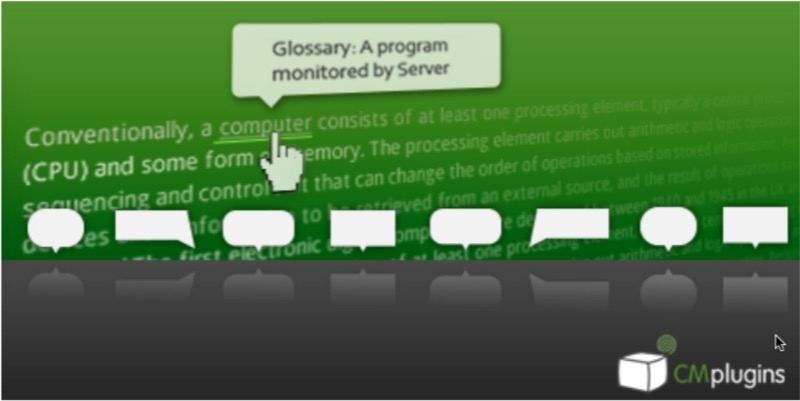

One thing about language is it grows along with the needs of its users. It’s only natural that different walks of life use different sets of vocabulary. If you’re a doctor and have never dealt with the law, there will be terms about the law that you don’t know. Similarly, there are medical terms that lawyers won’t even know existed. The same thing happens for many other segments of human life. And we are only talking about one language.
In the Internet era where all sorts of information is available to be accessed, differences in languages are a problem. And as a web owner, you should provide solutions to make your visitors’ life easier, or they will leave you for the ones who will.
One of the solutions to the language barrier is to use tooltips to give an immediate explanation or definition to a less-common term. And if you are a WordPress user, there’s a plugin for that.
Choosing and Adding the Plugin
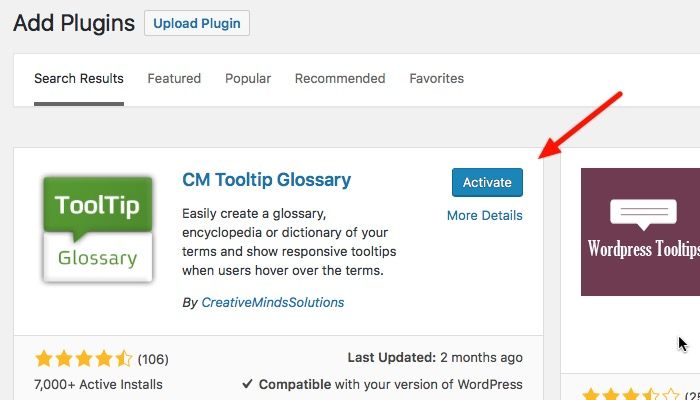
If you search for “tooltip” in the WordPress plugin repository, you will find several alternatives. Putting the faith in users’ reviews, we will pick the most popular – one with over 7,000 installs, high ratings of almost five stars, recently updated, and compatible with the latest version of WordPress. The plugin is called CM Tooltip Glossary.
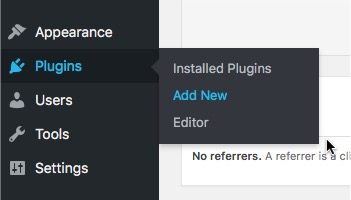
1. Installing the plugin is as simple as searching for it from within the WordPress dashboard. Go to “Plugins -> Add New” from the sidebar menu.
2. Search for CM Tooltip Glossary, click “Install Now,” and then “Activate.”
Adding Tooltips and Glossary
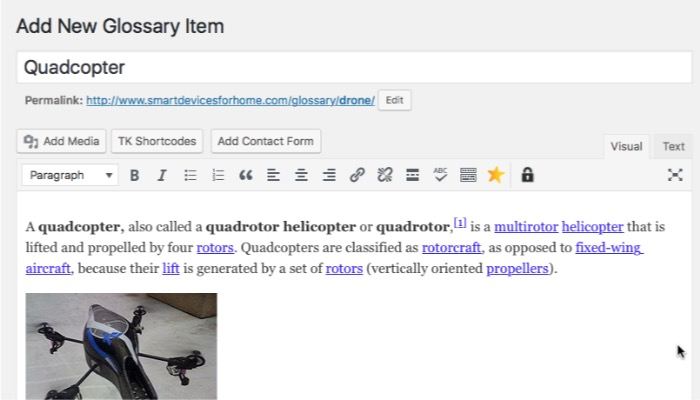
After installation and activation, you can start with adding a new glossary by going to the “CM Tooltip Glossary -> Add New” menu.
The interface is similar to the normal WordPress post or page editor, so regular users won’t have any trouble using it. Just add the glossary entry as the title and write the descriptions that you want to appear in tooltips in the writing area.
You can include images in the entries but not video. If you add video in the free version, the video will appear on the glossary page but not in the tooltips. This feature can be unlocked if you buy the Pro version.
For the best results of tooltip appearance, you should set the image alignment to “center.”
After you finish writing the descriptions, don’t forget to save your glossary entry.
Now every word(s) in your existing posts and pages that match the glossary entry will get a popup tooltip automatically whenever you hover your mouse over the term.
You can also add the glossary entry to a new post or pages, but please note that you need to use the exact match letter by letter to enable the tooltip. On the other hand, the plugin is not case sensitive.
For example, if you add “Shadow” as your glossary entry, all the appearances of the words “Shadow” and “shadow” within your WordPress site will get popup tooltips but not “shadows.”
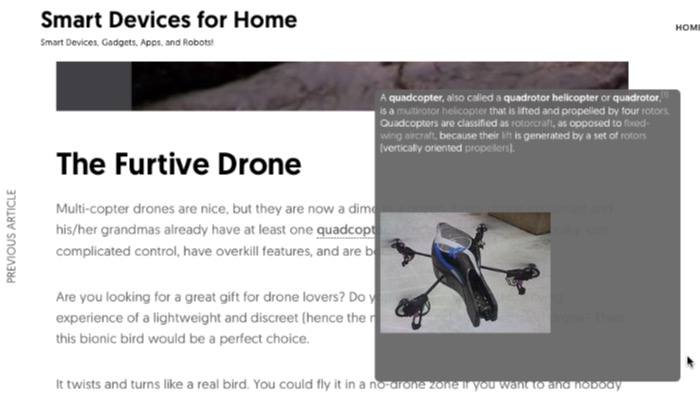
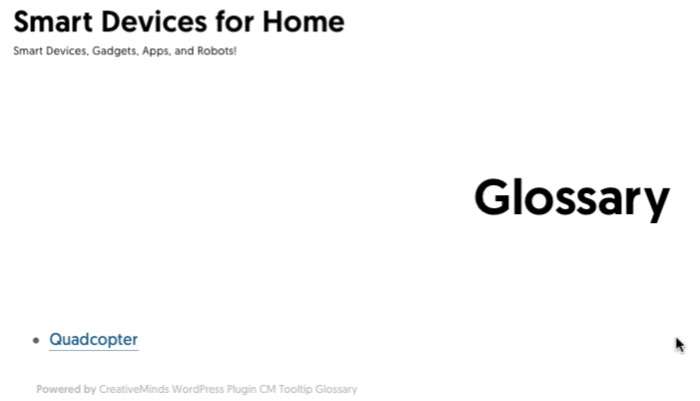
If you click on the glossary item, you will be taken to the specific glossary page. If you want to view all the available entries, you can go to “http://www.your-site-url.com/glossary.” This address can be changed in the Settings.
Expand Your Glossary
Glossary entries are the perfect way to keep your visitors on your site longer. And we all know that the longer the visitors stay on your site, the higher the points will be that Google will give to your site. Translation: higher ranking in the search engine.
It’s also an excellent way to optimize internal links. You SEO guys out there should know the value of internal linking to your site ranking.
But unless you have tons of free time on your hands, it’s impossible to add tons of glossary entries at one time. You should do it one entry at a time. And over your site’s lifespan, you will get a solid glossary page that will benefit both your visitors and your site.
Do you use tooltips and glossary entries on your site? Do you plan to? What is your opinion about it? Please share your two cents in the comments below.