
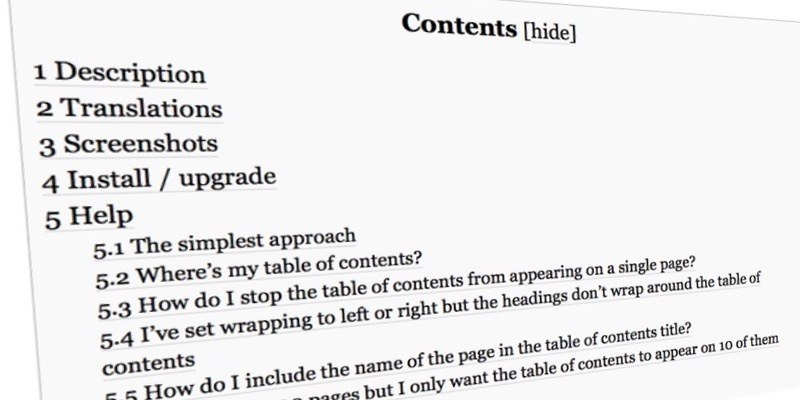

Everybody who has been in the online content provider business long enough knows that Google loves long-form storytelling as it provides Internet users with more quality materials. As a result, articles with thousands of words have become common in the world wide web. But on the other hand, the number of readers who are lost in their explorations are also increasing.
One thing that should be helpful in navigating through the long article is Table Of Contents (TOC). Unfortunately, most of the time the TOC is set to sit at a particular position and will quickly disappear after the user scrolls away. It would be nice if you could set the TOC to be floating along the article in a fixed position so it will always be available.
If you are a WordPress user, here’s how you can add a floating table of contents to your WordPress posts.
Also read: 8 Common HTTP Errors and How to Fix Them
Adding the Table of Contents
The first step is to insert the TOC. One recommended TOC plugin is Table of Contents Plus. This plugin will automatically generate the TOC based on your article’s headings.
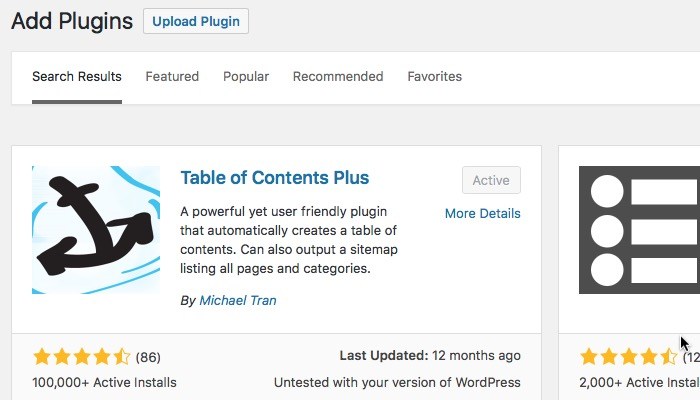
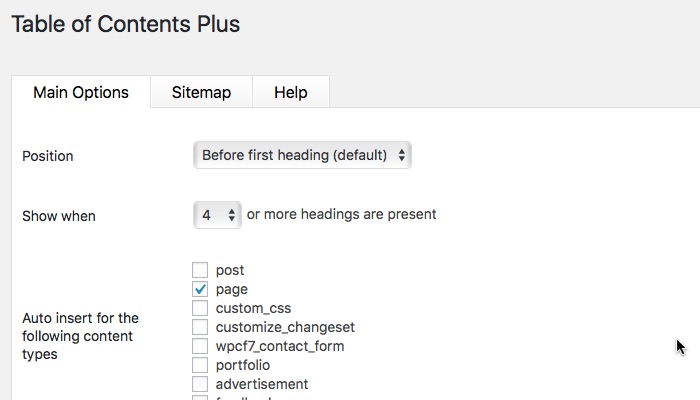
After installation and activation, the plugin will be accessible under the “Settings -> TOC+” menu. From the settings you can set the plugin to automatically appear on certain content types, set the minimum number of headers before it’s activated, use shortcodes to enable/disable it and to insert it at a particular position of the post/page, and many more customizations.
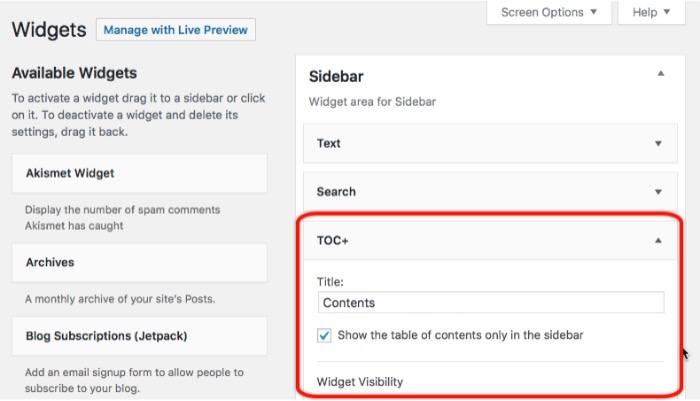
To show the TOC in the sidebar, go to “Appearance -> Widgets,” then drag and drop the “TOC+” widget to the Sidebar widget area. Click Save, and you are done.
The TOC will appear on the sidebar of all the posts and pages that meet the criteria.
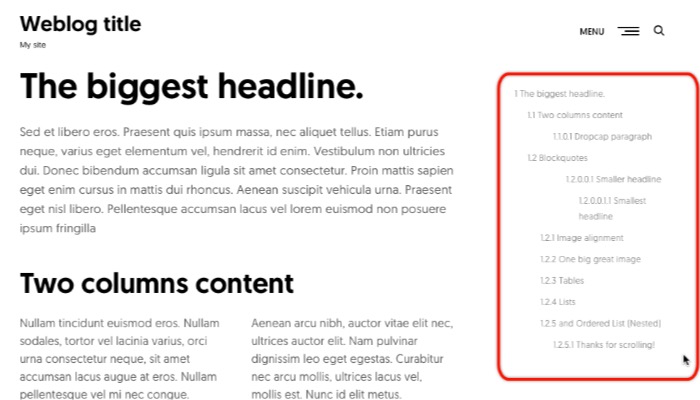
But, the TOC sidebar widget will still scroll along with the article. To make it stick, let’s continue along in this tutorial.
Making the Table of Contents Stick
To achieve our second objective, we need help from another plugin called Q2W3 Fixed Widget. Take the usual trip down the WordPress repository lane, then install and activate the plugin.
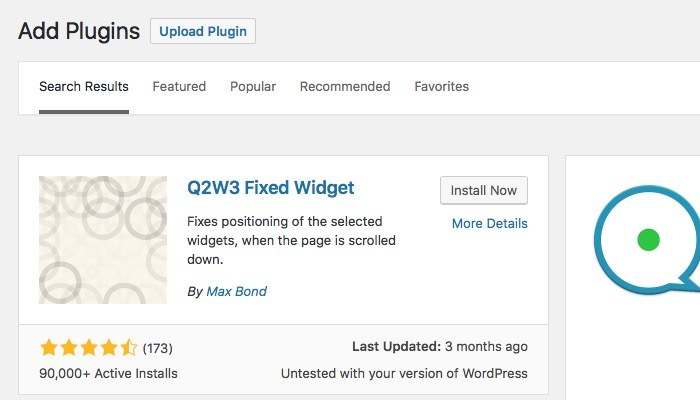
This plugin setting is accessible via the “Appearance -> Fixed Widget Options” menu, but most users don’t need to tinker with them.
Using the plugin is simple. Go back to “Appearance -> Widgets,” and select the widget you want to pin on the sidebar. Since we want to make the TOC+ widget floating along the scroll at a fixed position on the sidebar, select it.
You will notice a new checkbox appear just above the Save button called Fixed widget. Simply check this box, and you will have yourself a fixed table of contents.
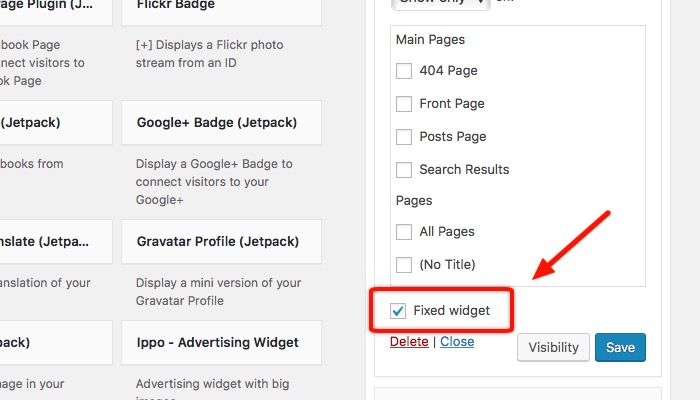
And the feature is not limited to Table of Contents Plus. You can use the Q2W3 plugin to make any widget stay visible on the sidebar.
Now you can go to the page or post that has the sidebar TOC widget and admire your work. Should you ever need to disable it, go back to the “Appearance -> Widgets” menu and uncheck the box.
A Few Tips
While CSS masters can take advantage of the style customization feature of TOC+ to tweak its appearance to their preferences, most users will just use the plugin out of the box. It means the TOC display will be influenced heavily by the theme that you use.
I managed to test the combination of TOC+ and Q2W3 with several themes, and here are several tips that you can use to get the maximum result.
First, put the fixed TOC+ widget at the bottom of the sidebar below the other widgets so that it won’t go over another widget when you scroll. Since the widget has a transparent background (at least it does in the themes that I tested with), looking at two different transparent widgets stacked on top of each other is not a pretty sight, especially if one is moving and the other is not.
Second, use as few widgets as possible on the sidebar. This way the TOC+ widget will be visible before the page fold, then it will scroll up with the page until it reaches the top page and stays there.
Another advantage of using a fixed sidebar is that your visitor will never have the empty area that usually appears when they have scrolled way down the page.
Try the combination and tell us what you think.