

Simply writing blog posts are no longer enough. You must ensure that your content is easily shareable across all the major social media networks. To make this easier, Blogger has recently added a “share buttons” option. Adding these buttons to your Blogger blog is fairly straightforward. Navigate to your Blogger dashboard, select Design, follow by Edit under the “Blog Posts” box and a popup will open. This popup will have a “Show Share Buttons” option, select this and select Save in the popup and Save on the main page.
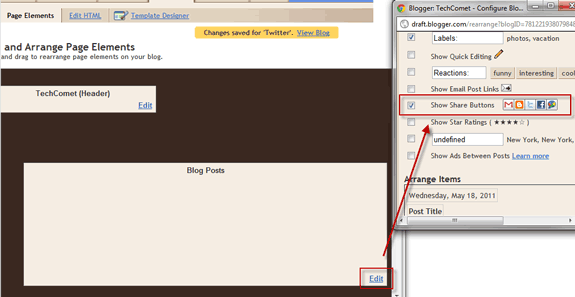
Next to your blog post the share buttons will appear.
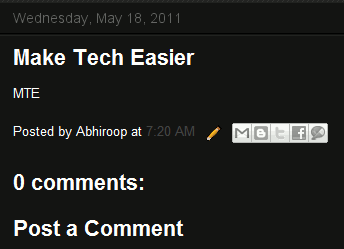
However, the default share buttons are quite limited in functionality as they do not allow you to select the social media networks you want displayed and more importantly they do not have the Facebook “Like” or Twitter “Tweet” buttons, which have become ubiquitous on the web.
Therefore, in this article I will describe how to add share buttons to your blog from a variety of social media networks, specifically from Facebook and Twitter.
Set-Up AddThis
There are a number of ways to add share buttons to your blog, including a variety of web services and even from the official Facebook and Twitter sites, however I prefer to use AddThis as it is simple and highly configurable.
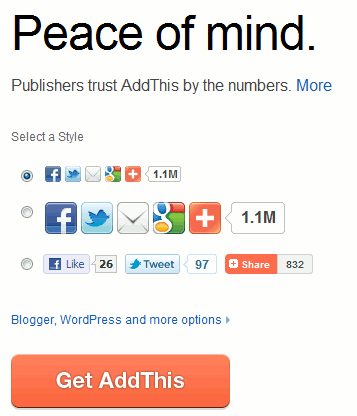
Once you have registered for an account, select “Get AddThis” from the main page to start customising your buttons.
You will then be presented with some HTML code to add to your website. If you add this code to your blog, the share buttons will look like the Preview. However, if you want to customise your buttons further, select “Customize >“.
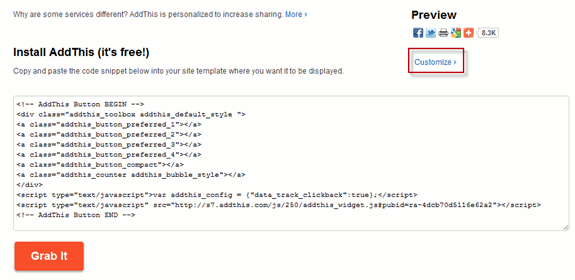
Here you have more options for selecting the platform you want to add the buttons to and their style. Select the Style you want for your buttons. Instead of selecting Blogger under Platform, select Website. This will ensure that the full HTML code of the share button is displayed and you can tweak it later. The styles may seem limited at this point, but select the one that is closest to how you want your share buttons to look like and select Grab It to copy the code.
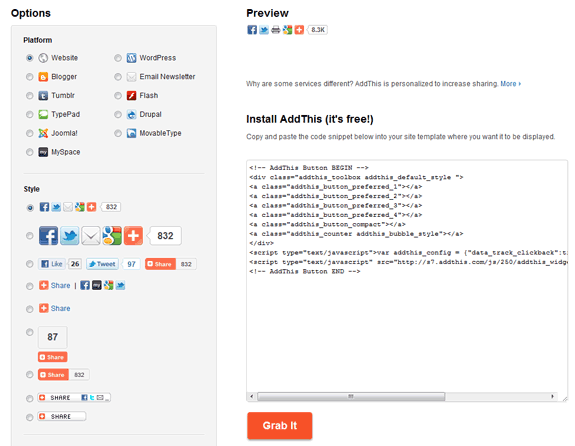
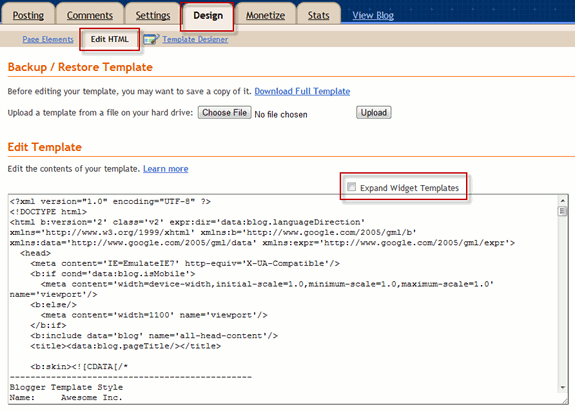
You must now paste this code into your Blogger blog. To do so navigate to your blog’s dashboard, select Design, follow by Edit HTML. The full HTML code for your blog will appear. Next, select Expand Widget Templates.
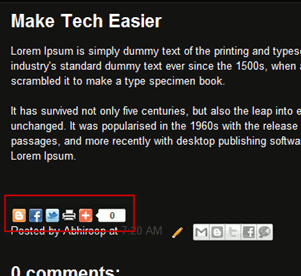
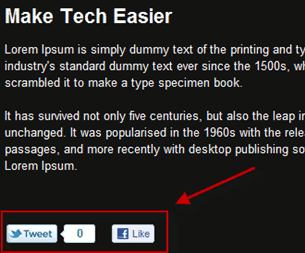
Depending on where you want the share buttons to appear on your blog, you can add the HTML code from AddThis accordingly. I like to have the buttons just below the actual text of my blog, so I place the AddThis code below the Once you have pasted the code in your desired location, select Save Template and view your blog. I promised earlier that AddThis allows you to customise your buttons beyond the limitations of those on Blogger. To do so, you will have to edit the AddThis HTML code. The default code is as follows: General Functions The first portion of the code This will display the Tweet button and the Facebook "Like" button in place of the default "preferred" buttons. Additionally, the Final Code My AddThis code, incorporating the settings from above, is as follows: On my blog it appears as follows: The customisation options on AddThis are limitless and it supports a vast number of services. It is impossible to outline every single combination, however I would recommend you try out a few different options and see what works and what looks good.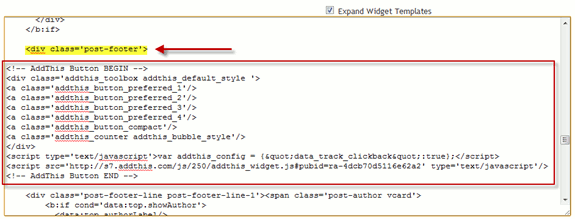
Customising AddThis Share Buttons
expr:addthis:title='data:post.title' portion of the code automatically displays the title of your post in everything you share. So, for example, if you click on the Twitter share button, the Tweet will be formatted to display the title of the current blog post. Similarly, the expr:addthis:url='data:post.url' portion ensures that the permanent URL of the current blog post is attached to your shared content.
So, if you were to select the Twitter share option, your tweet for the post would look like this:
Make Tech Easier http://t.co/nCLRCEE via @AddThis
First, the title of the blog post is displayed, then the URL and finally the original tweeter.
Additional Buttons
The next set of options allows you to select the types of share buttons you wish to display. I recommend having a look at the services list to see the full list of share buttons available (most social networks are available and you can request for more to be added).
To change a share button simply amend this tag with the name of the service you wish to display. For example:
a class='addthis_button_tweet' tw:via='abhiroopbasuu'/>
tw:via='abhiroopbasuu' portion ensures that when someone shares my posts using Twitter, the post is displayed as originating from my username (instead of @AddThis).
Conclusion