
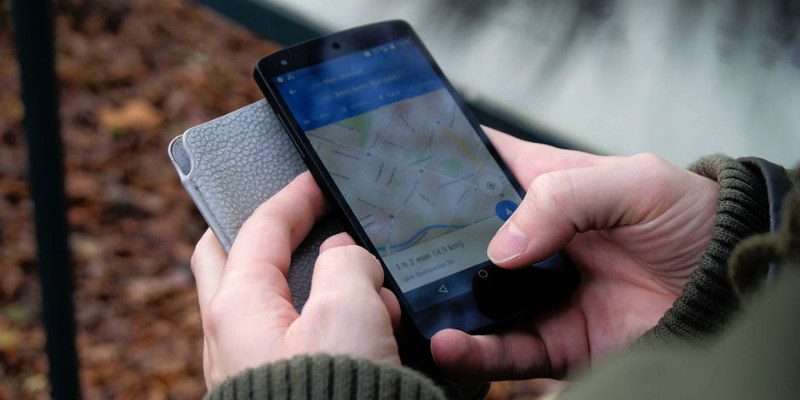

In this day and age there seems to be more and more people who cannot navigate their way out of a paper bag without firing up the Google Maps app. So it should come as no surprise that GPS is ruining our natural sense of direction. Fortunately, the overlords at Google have noticed this problem. The solution that they came up with is going to make us all more dependent on their navigation app, but at least we’ll get to places we need to be.

Most folks know that Google Maps can give you detailed directions to get from point A to B. But what if you want to hit up multiple stops on your journey? Forget looking at a map. Say goodbye to wandering around looking for street signs. Google Maps allows you to enter up to nine additional destinations! Now you can throw away the paper map in your glove box with confidence!
Note: adding multiple locations in Google Maps is only supported when traveling by car or on foot. If you find that you are unable to add more than one destination, ensure that you have selected either the car or walking man icon in Google Maps.
Also read: How to Drop Pins in Google Maps for More Accurate Directions
How to Add Multiple Destinations in Mobile App
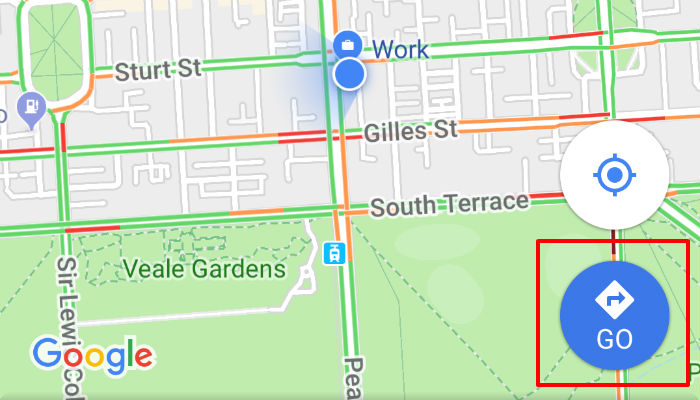
You can add multiple destinations to both the Android and iOS versions of Google Maps. To get started, fire up the app, and tap on the blue “Go” button in the bottom-right of the screen.
You’ll notice that by default Google Maps uses your phone’s location as your starting point. If you want a different starting point, enter it in manually. Next, enter your first stop in the “Choose destination” box underneath the starting point. To enter another destination, tap on the menu icon (three dots stacked on top of each other) in the top-right corner of the screen. With the menu open, locate the “Add stop” option, and tap on it. This will add another destination box underneath the first one. Pop your second desired destination in that box.
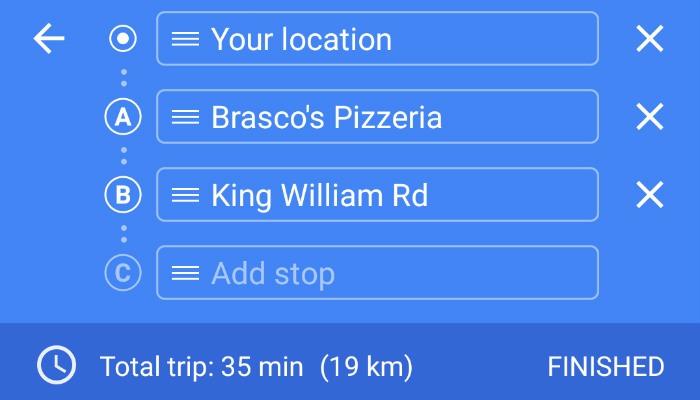
You can repeat this process to add nine additional stops beyond your original destination. If you want to rearrange the order of your stops, notice the three stacked lines to the left of each destination. Tap and hold on those three lines and drag the stops into the desired order. Once you’ve added all your stops, and they’re in the right order, tap “Finished,” and you’re ready to roll.
Also read: 7 Tips and Tricks for Google Maps on Android
How to Add Multiple Destinations Using Your Browser
If you prefer to organize your trips ahead of time, you can use the web-based version of Google Maps. Adding multiple destinations in the browser version of Google Maps is pretty much the same as in the app. However there are some slight variations.
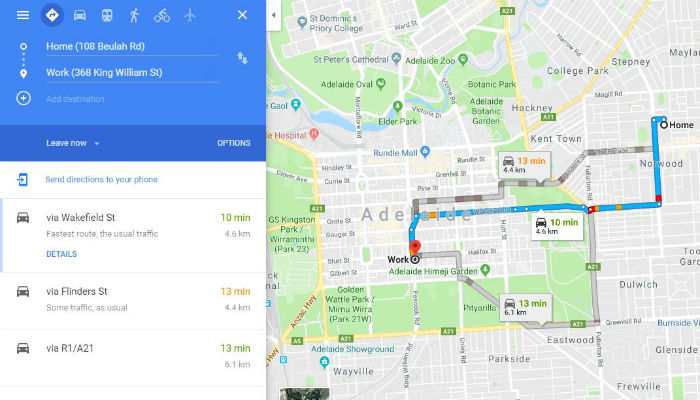
To get started, point your browser to Google Maps. Click on the “Directions” button which looks like a blue diamond with a white arrow inside of it. By default, Google Maps uses your computer’s location as the starting point. If you’d like to change it, do so now.
Next, you are going to enter your first stop in the field marked “Choose destination, or click on the map.” You have the option to either type your destination in or click on the map to mark where you’d like to go.
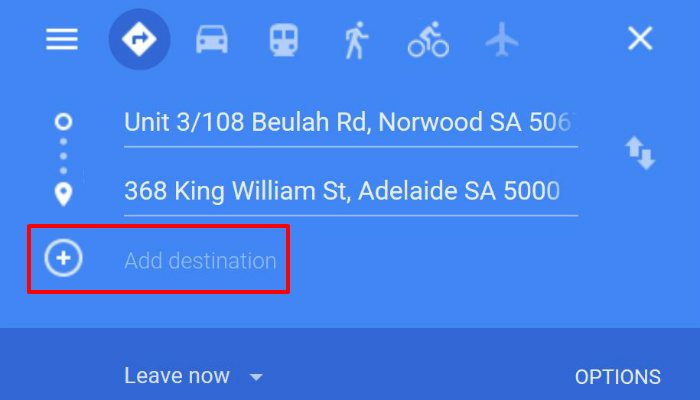
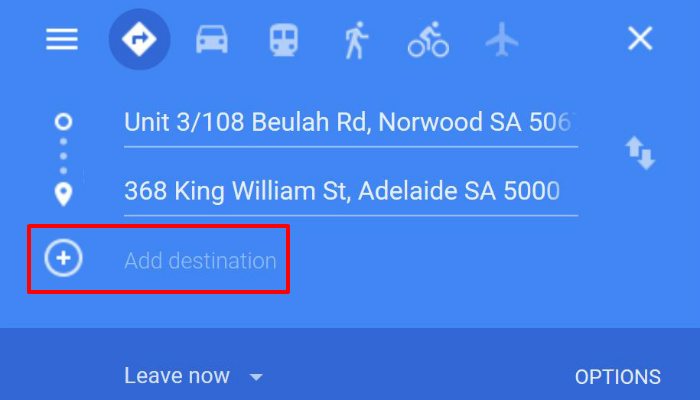
Once you enter your first stop, you should see a “+” icon labeled “Add destination.” Click on this and another location. Again, you have the option of either typing this in manually or clicking on the map.
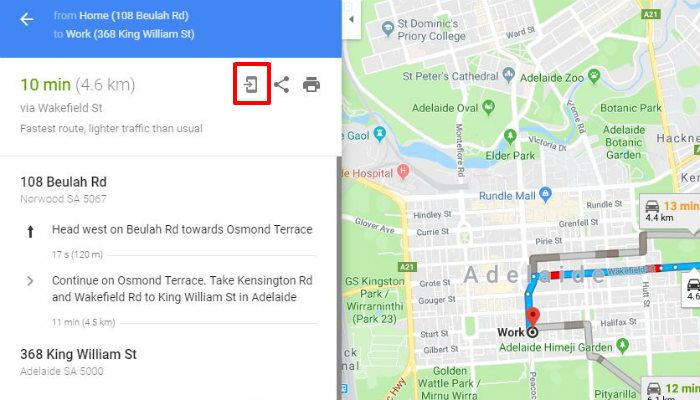
As with the mobile app, you can add nine additional stops to your trip. Like the app, you can easily rearrange any of the stops on your trip. Just click on the circles next to the locations to drag and drop them into the desired order. Furthermore, you can send the directions directly to your phone by clicking on the phone icon.
Do you use Google Maps to plan your multi-stop trips? Has GPS and automated navigation ruined your sense of direction? Can you successfully re-fold a paper map? Let us know in the comments!