


WordPress has multiple built-in post statuses like draft, published, trash, pending, and scheduled. If these statuses are not enough for your workflow, then you can create your own custom post statuses.
WordPress official documentation has a simple way to add custom post statuses to your WordPress site. All you have to do is copy the provided snippet and paste it into the functions file or the functionality plugin. However, for whatever reason, it doesn’t work every time, and the result is a bit finicky. Moreover, the added custom post status will not appear in the dropdown menu without fiddling with some javascript.
So to avoid all the issues that come with adding a code snippet and make things easier, we are going to use a free plugin called PublishPress.
PublishPress is a small yet powerful plugin that is specifically designed to manage editing flow or regular and multi-author WordPress websites. As such, it has a built-in feature to quickly create and add new custom post statuses.
Also read: Top 10 Common WordPress Errors (and How to Fix Them)
Add Custom Post Status to WordPress
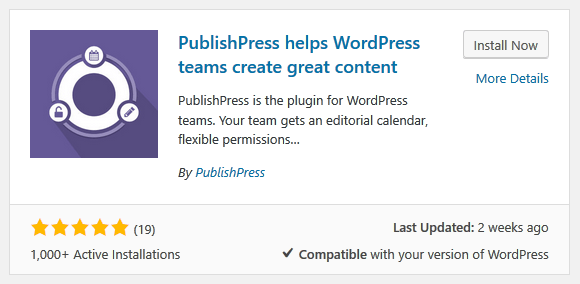
1. First, we need to install PublishPress on WordPress. For that, go to “Plugins” and then “Add New.” Here, search for “PublishPress” and click on the “Install” button.
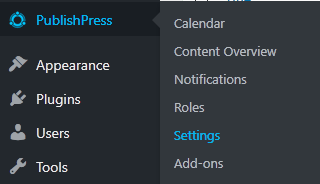
2. After installing, go to “PublishPress -> Settings -> Statuses.” This is where we can add our own post statuses.
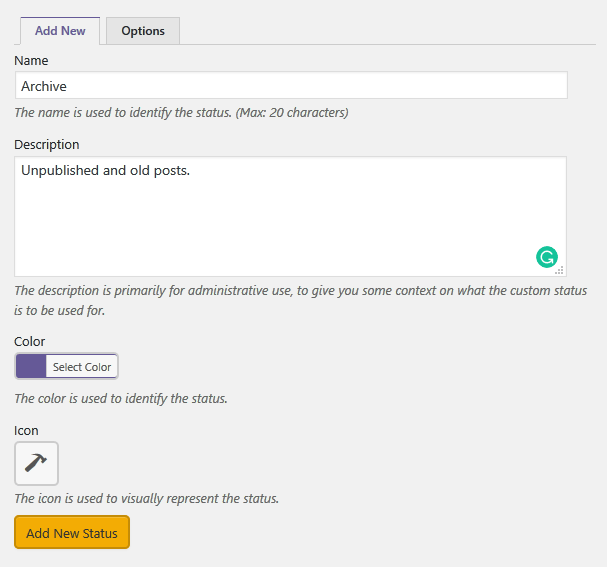
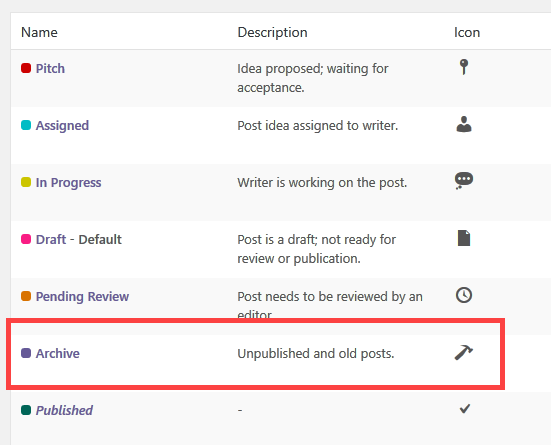
3. PublishPress automatically adds three new post statuses called Pitch, Assigned, and In Progress as soon as you install the plugin. You can see them on the right panel. To add your own, enter the post status name and description in the “Name” and “Description” fields. If you want to, you can customize the new status with a custom color and icon to differentiate it from other post statuses. Click on the “Add New Status” button.
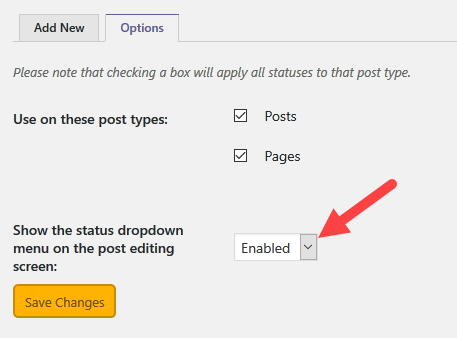
4. Depending on the user role, the custom post status you created may not appear in the post or page editor’s dropdown menu. If you want to make the new post status always appear, then go to the “Options” tab and select “Enabled” next to “Always Show Dropdown.” Click on the “Save Changes” button.
5. That is it, you’ve successfully created the new post status.
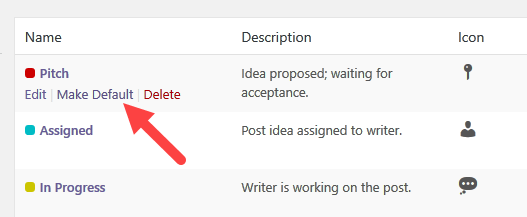
6. If you want to, you can change the default post status from Draft to whatever post status you want. To change the default post status, click on the “Make Default” link which appears when you hover your mouse over the post status in the same page.
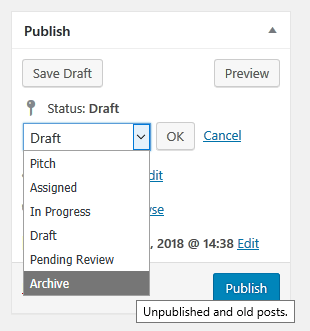
From this point forward, you will see the custom post status appear in the dropdown menu when creating a post or page.
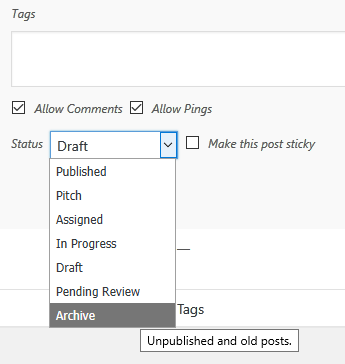
Of course, you will also see the new custom post status in the Quick Edit menu.
One thing to keep in mind is when you want to uninstall the PublishPress plugin, you have to manually change the post statuses of all the posts, pages, and custom post types from custom post status to default WordPress post status like Draft before uninstalling.
Otherwise, the posts with custom post status will disappear but NOT be deleted from your WordPress dashboard. The same is true even when you chose to use the snippet provided in the official WordPress documentation. If you accidentally uninstalled the plugin without first changing the post statuses, you can make them reappear by simply reinstalling the plugin from the WordPress repository.
Comment below sharing your thoughts and experiences regarding using the above method to add custom post statuses in WordPress.