


Google Slides is an excellent alternative to PowerPoint for creating and displaying a presentations. The software is free and packed full of features. One of those features that will help you create a professional-looking presentation is the ability to not only insert a graph or chart but also link the two for easy updating.
The following instructions will show you how to add a chart to your Google Slides presentation.
Insert Graph as an Image
If you have already created your chart or graph, and you know that data will never need to be updated, you can insert it as a simple image.
1. Save your chart or graph as an image file.
2. Create a new Slides document by clicking the New button.

3. Choose Slides.
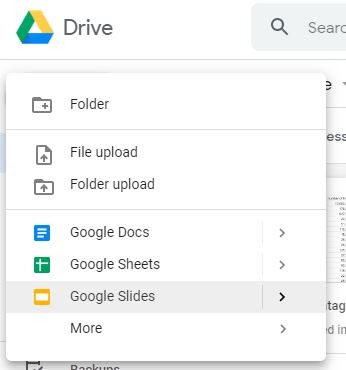
4. Click on Insert and select Image.
Also read: 10 Google Slides Tips to Save You Time
Create a Graph in Google Slides.
Inserting the chart as an image is great if you are using data that won’t change in the future. But if you will update that information for a future presentation, you should create the chart directly in slides. This will link your chart to the data in Google Sheets and allow you to make updates to that information that you can update on the slide with a simple click.
To insert the image:
1. Go to the slide where you want the chart.
2. Click on Insert and select Chart.
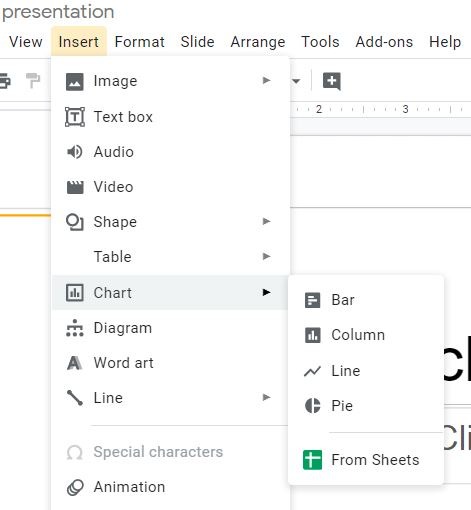
3. Choose a chart style.
4. Your chart will appear in the slideshow.
5. To edit the inserted chart, click on the link icon in the top-right corner of the chart and select “Open Source.” When you click Open Source, Google will take you to a pre-made Google Sheet. This sheet will contain the data used in the chart and a copy of your chart as it looks in your presentation.
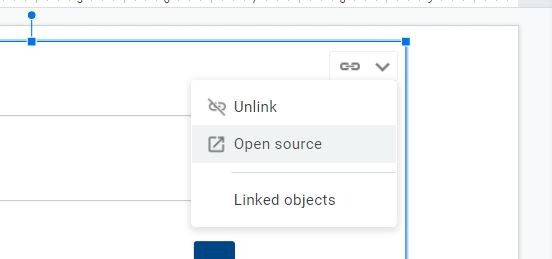
6. Double-click on the chart to open the chart editor.
The chart editor has two tabs, Setup and Customize.
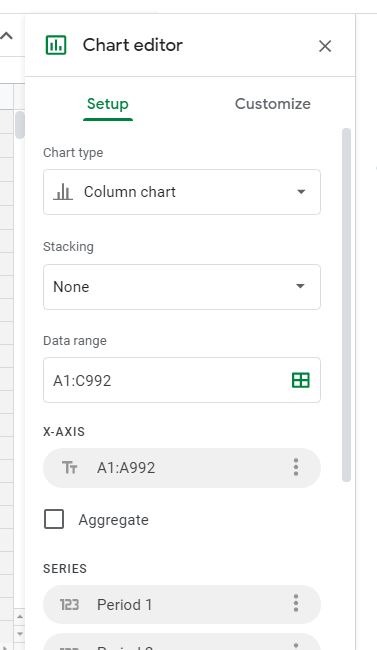
Setup allows you to change the chart type, data range, and headers.
Customize gives you all the options to control the appearance of your chart. These include colors, fonts, and sizes of each of the elements of your chart. You can also edit the Legend which shows the explanation of the data points.
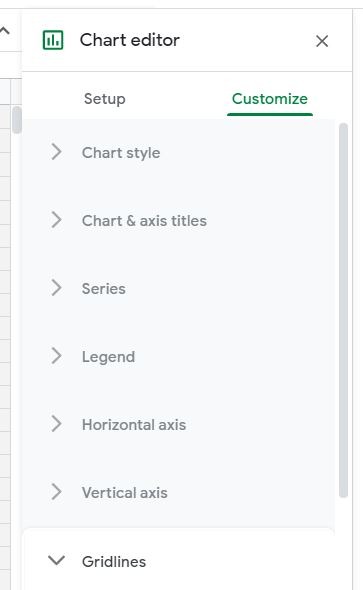
Change and edit the information in your chart. The data will automatically update in the chart.
If you add more columns, you’ll need to add a new series in the Chart Editor Setup.
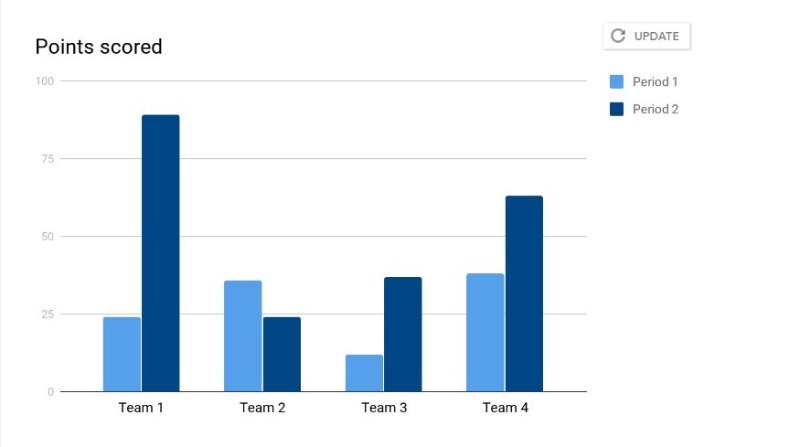
After you have made the necessary changes, go back to your Slides presentation and click the update button in the top right corner of the chart. Your updated chart will appear on the slide.
Also read: 10 of the Best Google Slides Add-ons to Create An Impressive Presentation
Linking a chart to a Slide from Sheets
If you would rather make the chart first, or if you already have data on a sheet that you want to add to a Google Slides presentation, you can still link the two files.
1. Add your data to a Google Sheets document.
2. Create the chart by clicking Insert and selecting Chart.
3. Make the edits you need to create the chart you need by using Chart Editor.
4. Go into your Slides presentation and click Insert, and hover over the arrow next to chart.
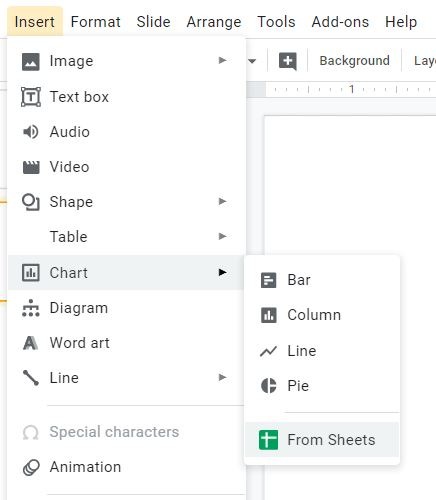
5. Select the “From Sheets” option.
6. A menu of your Sheets files will appear. Click the one you want to use.
7. Google will display the charts available in that file. Click the one to insert, and click Import.
The next time you have a presentation to make that requires charts and graphs to make your point, try using Google Slides. The steps to create and link these images are easy to follow and will create professional slideshows for your audience.