


Matched content is a new feature in Adsense that shows related content for your site and helps you to drive more traffic. It’s more like a “related posts” section with the option to include ads in it as well. In this tutorial we are going to show you how to enable Matched Content on your WordPress website.
Checking If Your Website Is Eligible
Not all Adsense Publishers can get the Matched Content units on their site. Google has set a minimum requirement for traffic volume and number of unique pages that a site needs to be eligible. You can check if you are eligible or not right from your Adsense account.
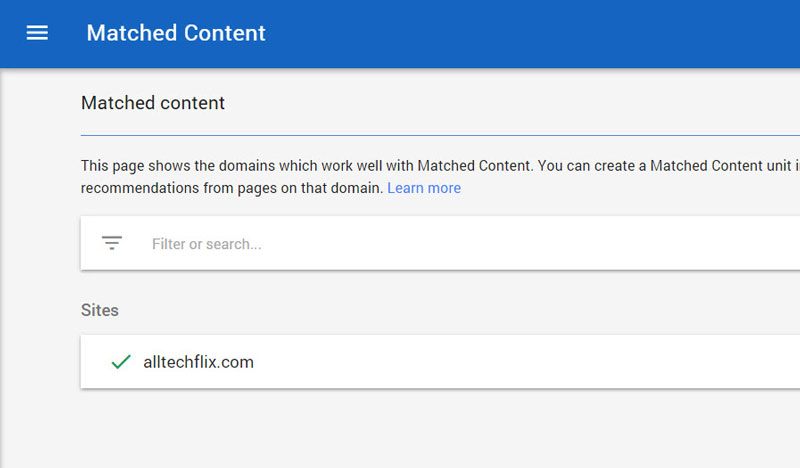
Open the account, and in the sidebar go to “Settings.” Under “My Sites” you should find the “Matched Content” tab. Here you can see which of your sites are eligible for Matched content. If a site is eligible, then it will show a green checkmark as shown below.
Create Adsense Matched Content Unit
The Matched Content Unit is also considered as an ad unit because the user can monetize it if he/she wants. The process is the same as any other ad unit in Adsense.
1. Go to “My Ads” in the Sidebar, and Under the “Content” section click on “Ad Units.”
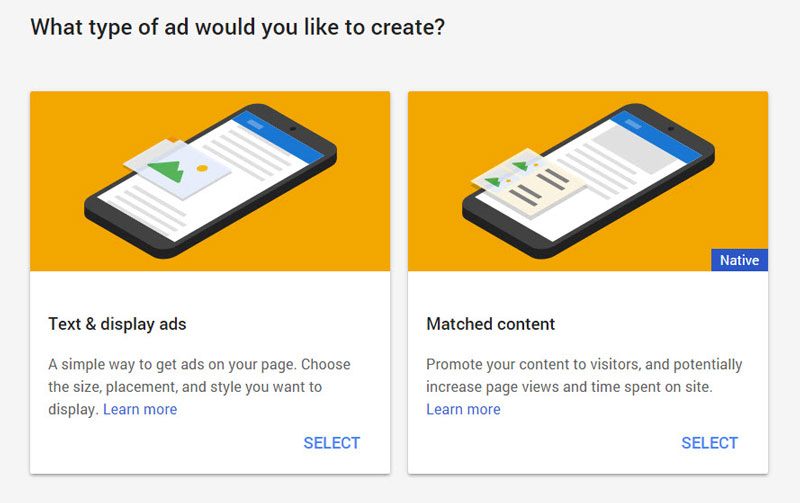
2. Click on the “New Ad Unit” button to create a new unit. On the next screen select “Matched Content.”
3. In the following interface you can see a live preview of how the unit looks. On the right you can customize and add your own styles to blend it with the content of your site. At the end there is a “Size” menu where you can set a custom height and width for the unit. Responsive sizing is recommended, though.
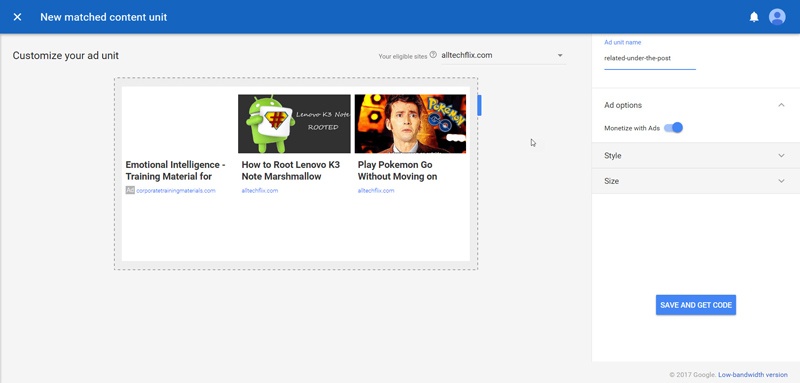
4. After you’re done customizing, click “Save and Get Code” to get the code snippet for the unit. On the next page copy the code snippet and head over to your WordPress site.
Place the Matched Content Unit on WordPress
There are two places recommended to place the unit. The first is right under the post where related posts are shown. The second area is in the sidebar. You need not worry about the amount of space the unit will take up if you’ve set the sizing to be “Responsive.” However, if you choose to place it in the sidebar, make sure the width of the sidebar is above 300px. Otherwise, it will cut the post titles and the feature image will look smaller.
There are different ways to place the ad unit code. The best way would be using the “Text Widget.” If you happen to use an Ad Placement plugin, then you can make use of that, too.
1. Install and activate the “Add Widget After Content” plugin. This will create a sidebar in the Widgets section through which you can place any widget under the content area.
2. Open the Widgets page in the Admin Panel.
3. You will see a new “After Content” section on the Widgets page. Drag and drop a “Text” widget in this section.
4. Paste the ad unit code in this widget and save it.
Placing the ad unit in the sidebar
1. Open the Widgets Page in the Admin panel where you will see a “Sidebar Widgets” section. The section is there by default.
2. Drag and drop a “Text” widget in this section and paste your Ad Unit Code in the widget and save it.
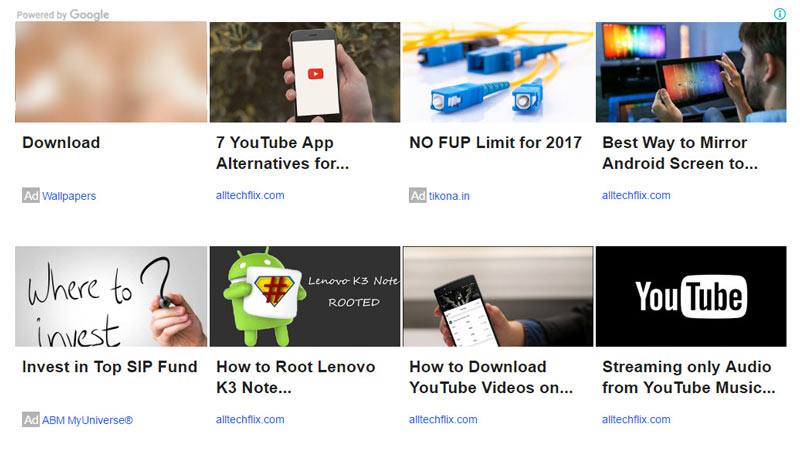
Below is an example of a unit placed under the post.
Conclusion
Adsense Matched Content is new but totally effective. In my experience, I did see a slight growth in post engagement. Also, the monetization option contributed well in the revenue. Do share your experience in the comments section.