

In the past, Dropbox worked with Microsoft to integrate their storage system with Microsoft’s office software. Both companies’ products were made even better by teaming up. Now Dropbox is doing the same thing with Google, developing an add-on for GSuite to make downloading attachments even easier.
Before this add-on was released, Dropbox had already released an extension for Gmail that worked in the Chrome browser. For it to work, however, you had to be using Chrome. The new add-on works through Gmail itself and works on mobile devices. (As of this writing, it was only available for Android, but the release for iPhone should be coming soon.)
What does the Dropbox add-on do?
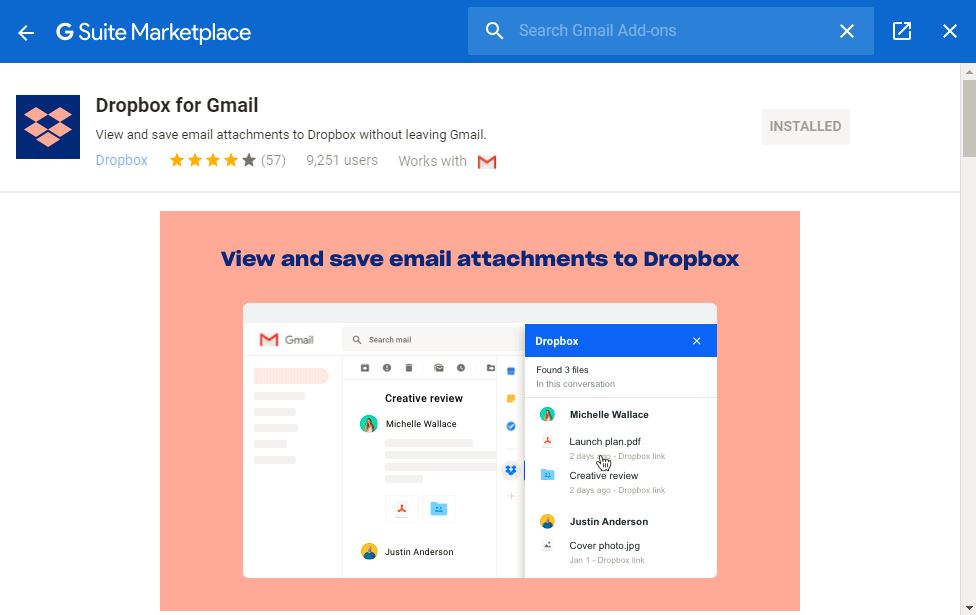
The new Dropbox add-on for Gmail gives you the ability to access Dropbox from your Gmail account. You can see all of your Dropbox folders and files without leaving Gmail and save your document to Dropbox without leaving your inbox. It helps the organizationally-challenged among us keep the files accessible without having to download all of them to the Downloads folder.
A benefit of the Dropbox add-on for Gmail is that it is much easier to send and receive large files. Once the attachment is saved to Dropbox, anyone you choose can open that file without needing any special software. You also have a limited amount of storage in Google Drive, and you may not want to chew all of it up with just a few large files. Downloading the attachments using this add-on saves room on your Google Drive for other documents.
Dropbox for Gmail not only shows a list of the file names of the attachments you save, but it also displays information like who sent the file, when it was shared, and its location. If you have ever had to scroll back through countless email threads to find a file, this will simplify that process.
If there was more than one attachment in an email thread, all of the attachments are listed in the Dropbox pane when you open that conversation.
Also read: Simple Tips You Can Use to Better Organize Files in Dropbox
How to get Dropbox for Gmail
1. Open Gmail on the Web.
2. Click Settings and select “Get Add-ons.”
3. Type “Dropbox for Gmail” in the search box.
4. Click “Install.”
5. Choose the account you want to use and then accept the permissions.
You can also find it by going directly to the GSuite Marketplace and downloading it from there.
Using Dropbox from Gmail
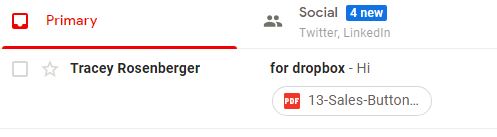
Once you install the add-on, navigate to an email conversation with an attachment to activate Dropbox. If you don’t do this, it will seem that the installation didn’t work because you will not see the Dropbox icon. It won’t display until you open an email for it to scan.
1. Click on the icon in the small column on the right side of the screen.
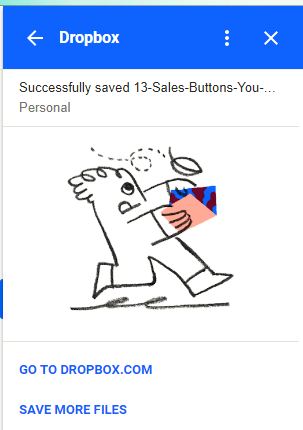
2. In the Dropbox window, click the link to the attachment. You must do this to save the document. Just opening the sidebar will not do that.
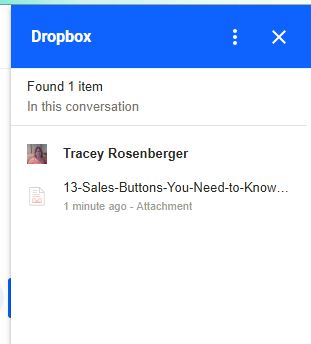
3. You can now navigate through your Dropbox folders, select the folder where you want to store the file, and click Save.
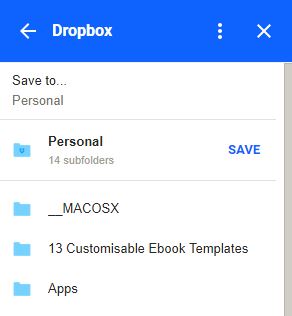
4. This screen lets you know that your file is saved.
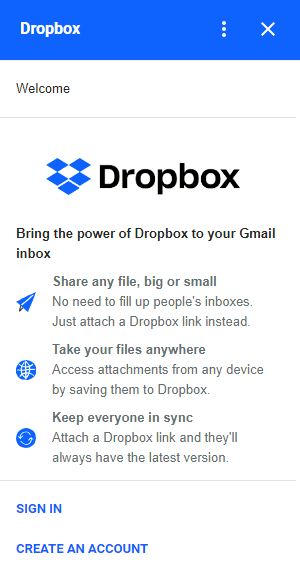
The first time you open an email with an attachment and click on the Dropbox icon, it will open a window for you to connect your account or create a new one.
Using the Add-on with Mobile Devices
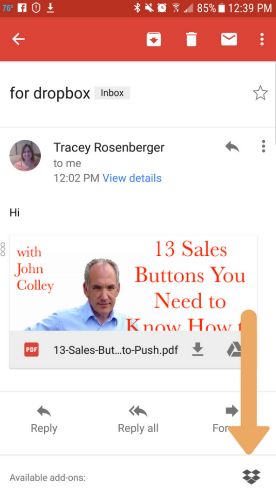
This add-on works on mobile devices, too, which is convenient, especially if you are working with a large file you don’t want to download onto your phone. When you open the email with the attachment on your phone, find the Dropbox icon at the bottom of the screen. When you tap the image, you will see the same options that are on the desktop.
Also read: How to Better Organize Emails in Gmail
Sharing Your Dropbox Documents
The new add-on makes sharing easy, too.
1. To the share a file you do need to open Dropbox on a browser. You do this by clicking on the three dots in the top-right corner of the open sidebar.
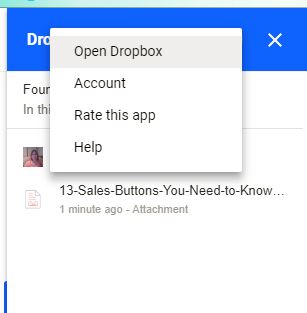
2. Choose “Open Dropbox.”
3. Select the file you want to share.
4. If you want to email the document to a friend or colleague, all you need to do is type the email address in the correct box.
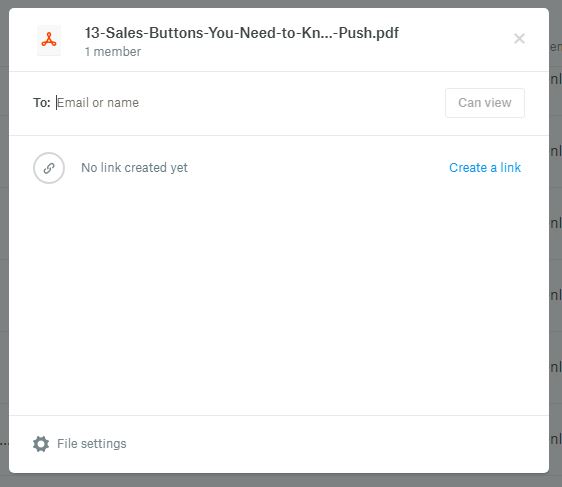
5. To email a link, press the button to create a link and copy it. You can then add it to an email.
Are you someone who often works with large files that you need to share with others? Or are you looking for a new way to keep all your downloads organized? If so, this new Dropbox Add-on for Gmail might be worth a look.