
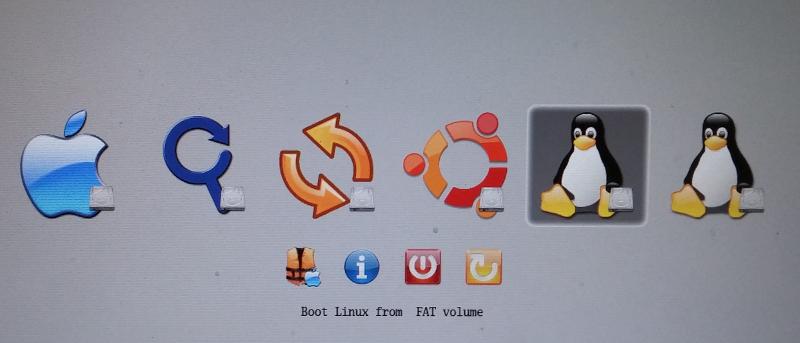

If you have followed our previous guide on how to dual boot your Mac with Ubuntu (or any other Linux distro), and you have upgraded your Mac OS X to Yosemite, you will find that the bootloader is overwritten and you won’t be able to dual boot into Ubuntu anymore. If you are having this issue, here is the fix:
The rEFit toolkit that we are using for the previous guide won’t work anymore in OS X Yosemite. To fix this, we will be using rEFInd, which is a fork of the rEFIt boot manager.
1. In OSX Yosemite, Download rEFInd from its Sourceforge page. Extract the zipped file. You should find a “refind-bin-0.8.3” folder.
2. Open the folder and look for an “install.sh” file within. Next, open a Terminal. Type sudo, follow by dragging the “install.sh” file to the terminal, and then append --esp to the end of the command. It should look like this:
sudo /path/to/refind/folder/install.sh --esp
Note: replace “/path/to/refind/folder” with the actual filepath of the refind folder.
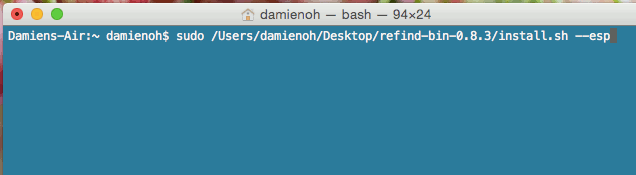
Press Enter. You will be prompted to enter your password.
3. If the installation of rEFInd is successful, you should be able to find a new mounted drive called EFI. Open Finder and go to the EFI mounted drive. Click to enter the EFI folder. You should see three folders: “APPLE”, “refind” and “tools”.
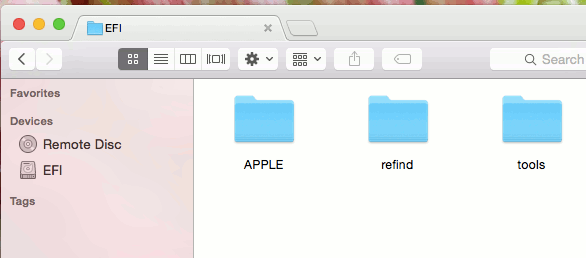
4. Rename the “refind” folder “boot.”
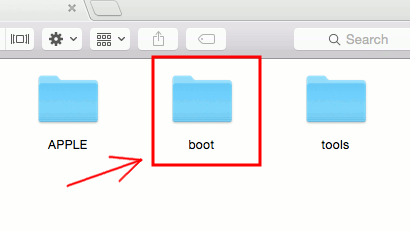
5. Open the newly-named “boot” folder. Rename the “refind_x64.efi” file to “bootx64.efi”

6. Now return to the “refind-bin-0.8.3” folder. In the “refind” folder, you should be able to find a “drivers_x64” folder. Copy this folder to the “boot” folder in the EFI drive.

7. Rename the “drivers_x64” folder to “drivers.”
That’s it. Reboot your Mac and you will be able to select your Ubuntu (or othe Linux distro) and boot into it.
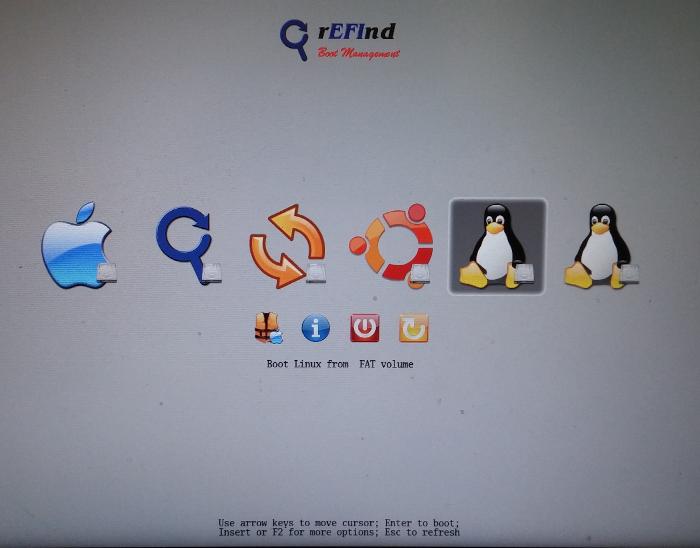
Let us know if you have any problems fixing the dual boot issue.