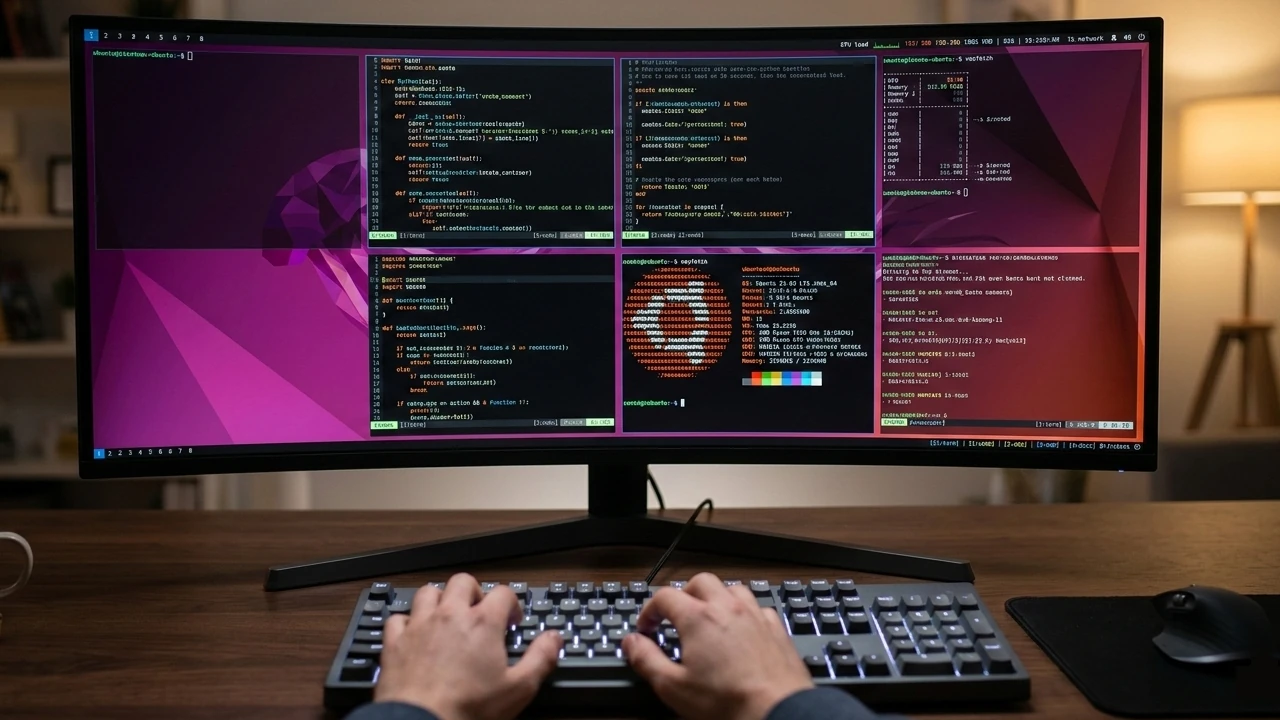
See how switching to the i3 tiling window manager can turn your Linux desktop into a high-performance, keyboard-driven command center.
By Haroon Javed – Mar 6, 2026
Exwm is a minimalist window manager that uses Emacs for its base. Learn how to use Emacs as a bona fide Linux desktop with Exwm today.
By Ramces Red – Dec 20, 2024
Hyprland is a highly flexible window manager for Linux. Look at some of our picks for the best Hyprland plugins that you can install today.
By Ramces Red – Oct 4, 2024
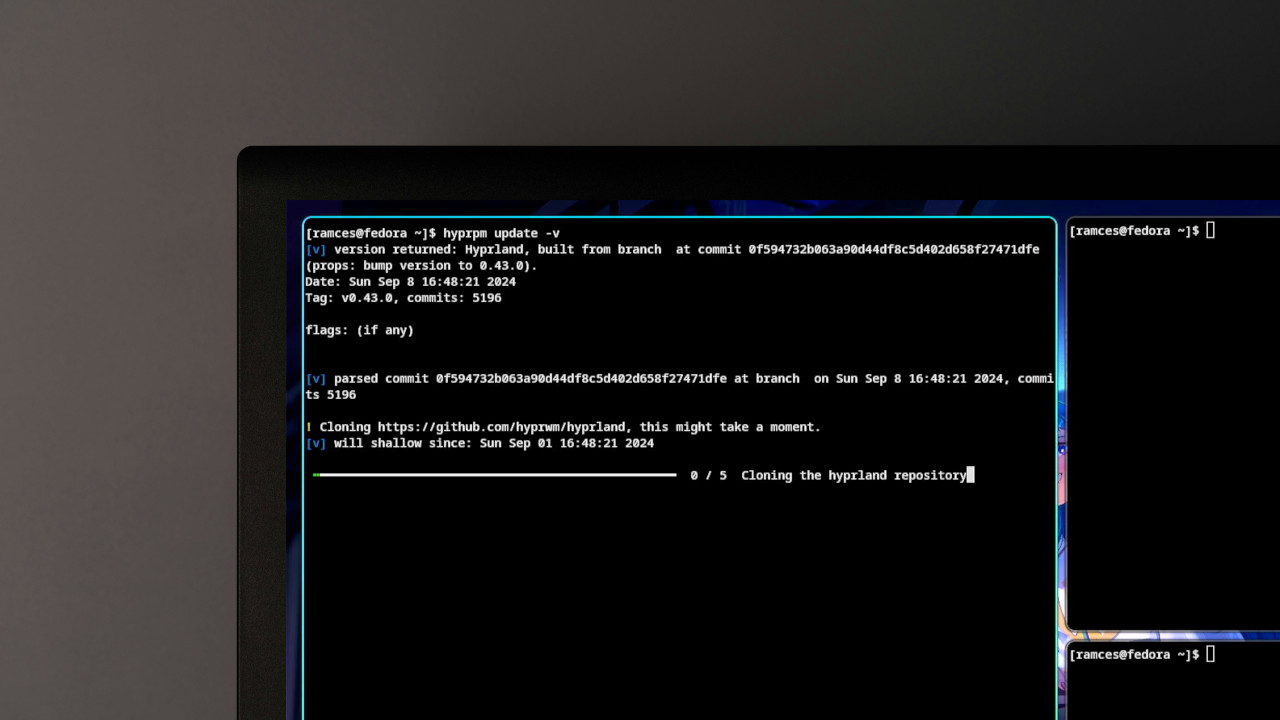
Hyprland is a bleeding edge window manager for Wayland-based Linux distros. Learn how to create your own tiling desktop with Hyprland today.
By Ramces Red – Sep 24, 2024
While dwm is a minimal window manager, you can add some features by patching it.
By Ramces Red – Feb 10, 2022
bspwm is a powerful minimalist window manager for Linux, and provides the best window customization options.
By Ramces Red – Jan 31, 2022
The Window Manager and the Desktop Environment are similar but different. Learn the differences between a window manager and desktop environment.
By Odysseas Kourafalos – Feb 16, 2021
Openbox is a lightweight and highly configurable window manager. Learn how you can install Openbox and configure it on your Linux PC.
By William Elcock – Oct 20, 2020
Tiling window managers have several advantages over Gnome and KDE. If you’re looking for a bare-bones experience or a foil to your current desktop environment, find out how dwm can offer exactly that.
By Casey Houser – Apr 2, 2018
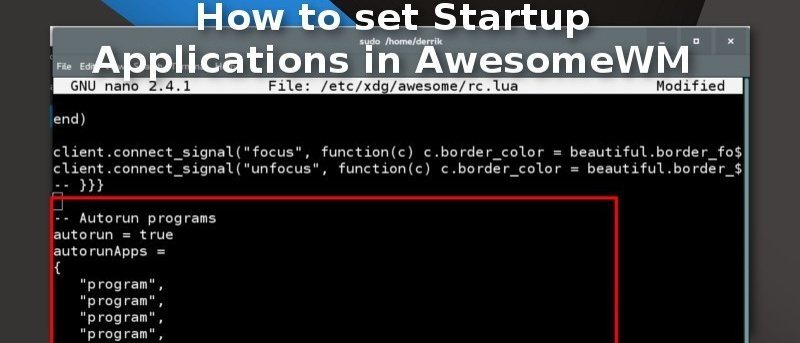
Using Awesome Window Manager on Linux? Looking to add certain programs to your startup application list? Here’s how to do it.
By Derrik Diener – Jul 4, 2015
Affiliate Disclosure: Make Tech Easier may earn commission on products purchased through our links, which supports the work we do for our readers.