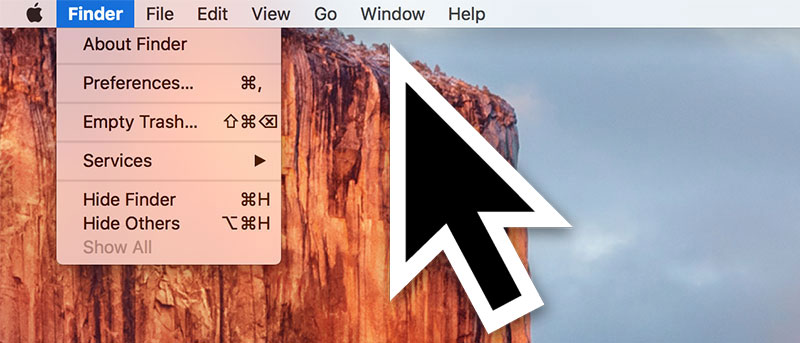
In El Capitan you can find where the cursor is by shaking your fingers on the trackpad to make the cursor get bigger. Don’t like this effect? Here’s how to disable it.
Did you know there’s a way to automatically hide the menu bar on your Mac so that you don’t see it unless you move your cursor near it? Here’s how it’s done.
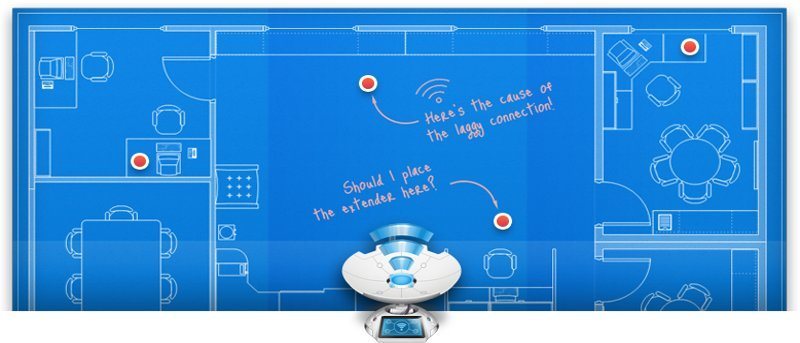
NetSpot is a free utility (with a Pro version) for Mac OS X that makes it easy to map out your wireless network. Here’s how to use it to optimize your Wifi Networks.
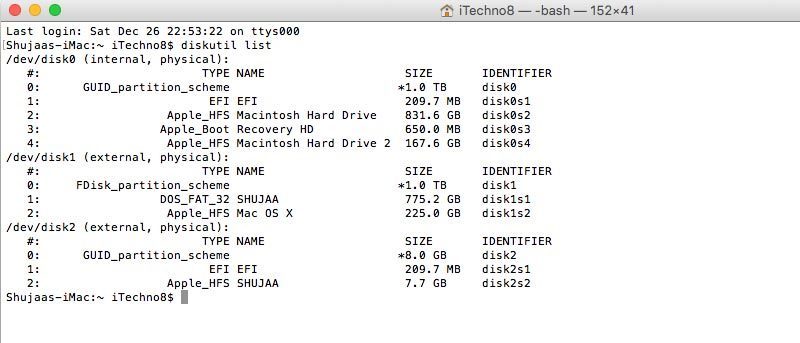
Formatting a drive on your Mac is quite easy, though it isn’t as evident and obvious as it is on a PC. You can format an external drive in OS X using Disk Utility and Terminal. Here’s how to do so.
Safari in OS X 10.11 El Capitan has a useful feature: pinned sites. It appears as a tiny square icon, located to the left of your tabs and never goes away.
In addition to customizing the Mac Dock to your liking by adding/removing application shortcuts, you can also add a Recent Items stack to it. Here’s how.
Launchpad on Mac allows you to manage and organize your apps just like you would on an iPad or iPhone. Here are some tips to help you make the most of it.
The power chime is a feature in the new Macbook. Using Terminal you can get the chime to sound when you plug in your Mac to your power outlet. Here’s how.
Although they’ve been around since 2004, you don’t hear a lot about Smart Folders. So let’s look at Smart Folders, how they work & some cool uses for them.
Learn how to set up and manage your bitcoins with Electrum locally. Make and receive payments and more. Electrum is available for Windows, Linux and OSX.
Do you record interviews for video blogs? In this article we look at various ways to capture your video conversations on Mac with both FaceTime and Skype.
You can use the Command+Tab shortcut to switch programs, but you can also use the dock. Here is how you can customize your dock to be a command+tab replacement.