Gimp is one of the most features complete open-source image editor around. It is often touted as the best alternative to Photoshop and is the best choices for people who need comprehensive image editing features and can’t afford Photoshop. As good as it seems, Gimp is not easy to master. All the tools and options are scattered around and you have to search, download and install custom plugins, filter to achieve certain effects. AdaptableGimp is a modified version of Gimp that provides useful instructions and step-by-step guide within the UI to help the users accomplishes the things they want to do easily.
[Read more...]
Be A Gimp Expert With AdaptableGimp
How to Create Tilt Shift Effect in Gimp
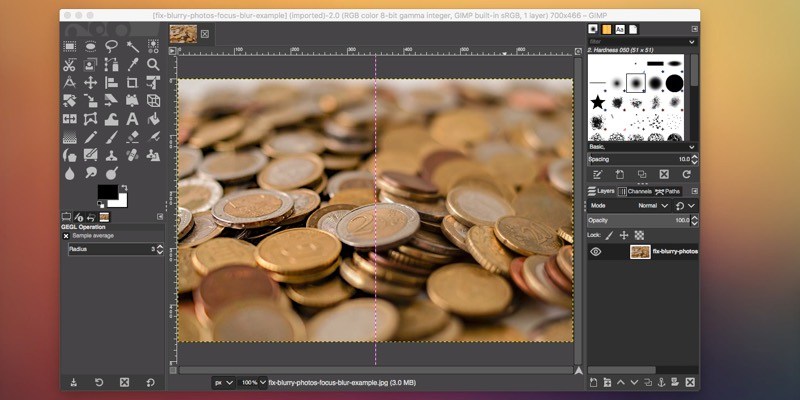
This isn’t something you’ll often do for work or a real project, but it’s fun and it can look cool. Tilt shifting a photo is something that can be done by expensive fancy camera equipment or, fortunately for us, free software. The idea is that when you take a photo of small scale objects like model towns, part of what reveals them as miniature is the difference in focus. When a camera is up close to small objects, it can’t focus on other nearby objects, making them blurry. Tilt shifting is applying this blur effect deliberately, to make large-scale objects appear small. Getting it just right can take a lot of time and effort, but the basic method is quite simple, and that’s what we’re covering today.
[Read more...]
8 Of The Coolest Brushes For The Gimp
Like almost any piece of software with rudimentary drawing capability, Gimp includes simple brushes like squares, circles, and fuzzy circles. While they get you by for many basic needs, there’s a lot more you can do. Everything from flowers and vines to flames and bubbles can be created by brushes, and today we’re going to show you some of the coolest ones out there.
[Read more...]
How to Colorize Your Black & White Photos with Gimp
Ever come across an old family photo that would really look great if it had some color? Or perhaps you found a gorgeous wallpaper online but the monochromatic color scheme just doesn’t fit with the desktop of your dreams. Thanks to modern photo editing programs like the Gimp, this process is a lot easier than you may be thinking. To get the obvious out of the way – no, we can’t magically recover the color of flowers at your grandmother’s wedding, but we can give color to those flowers to make them look however you’d like. All it takes is a good eye for color and some careful clicking.
Note: The quality of the end result depends largely on your eye for color. I, the author of this post, do not have a very good eye for color. Those who do would likely end up with a much more realistic final product.
[Read more...]
Batch Image Processing the Easy Way with Phatch
Have a bunch of photos you need to shrink? Or watermark? Or tag? Maybe add some shadows, round some corners, or stick your blog’s address into the corner? We’ve covered batch image processing a little bit before, but for the serious image processor, GIMP might not be enough. For that, we’ve got Phatch – a simple, lovely, amazingly useful utility that can handle all your batch image processing needs on Linux, Windows, or Mac. Oh, and it’s free.
[Read more...]
How to Batch Process Files in Gimp
We have gone through plenty of tutorials for GIMP, including creating arrows, drawing flames, create abstract wallpapers, etc. In this tutorial, we are going to show you how to make use of the batch process feature in GIMP to batch handle your images.
Usually after a photoshoot session, you will have tons of photos to process. Instead of going through one by one to process the images (sharpen, rename, save as different file format etc), you can use a batch program to handle them all at the same time. If you have already installed GIMP in your system, you already have a useful batch handling tool available for your usage.
[Read more...]
How to Draw Arrows in Gimp
Photoshop users who have switched to GIMP will notice that some of the PS features are not readily available in Gimp. Drawing arrows is one of them. As a tech blogger who have to edit plenty of screenshots everyday, there are times where I need to draw arrows on the images to illustrate the point. While this can be easily done in Photoshop, the feature is not available in the default installation of GIMP. Here is what you can do to enable the arrow feature in GIMP.
[Read more...]
How to Create Flames in Gimp
For whatever reason, flames are neat looking. I’ll leave it to psychologists to explain exactly why that is. All I know is that things on fire usually look cooler than things not on fire. To me, that also includes my wallpaper. As regular readers may know, I like to create my own abstract wallpapers and I’m a fan of the Gimp. Today we’re going to use Gimp to create flame wallpaper for your desktop. This process will work on any system that can run Gimp (Windows, Linux, OSX) without any additional plugins or textures.
[Read more...]
How to Easily Create Abstract Wallpaper In Gimp
Just about everyone loves a good looking abstract desktop background, but not everyone agrees on exactly what defines “good looking”. There are dozens of websites that specialize in these types of images, but you have to sift through hundreds, sometimes thousands, to find one you really like. Sometimes, after all the searching, the one you like is not in the right size or has a huge watermark or other such problems. Wouldn’t it be great if you could quickly and easily create your own image, with your own color scheme, at whatever size you choose, all in about 5 minutes? You can, and as usual, it’s Gimp to the rescue.
This guide will assume you’ve already got Gimp installed and running. If not, packages for Linux, Windows, and Mac can be found here.
[Read more...]
How to Selectively Color Images in 5 Minutes
Using color to highlight a particular portion of your image can have drastic effects on the end result. Using photo editors like Photoshop and Gimp you can emphasize whatever colors you choose in an image. Music videos and films like Sin City used this extensively, and the resulting look can be replicated in Gimp in just a few minutes. In this guide we’ll use two layers and some basic Gimp tools to highlight only the blue tones in a sample image, leaving the rest of the image black and white.
Note: There are multiple ways of accomplishing this effect that will give different results. The method demonstrated here is just one quick, easy way.
[Read more...]