Mac: How to Create a Basic Script With Automator

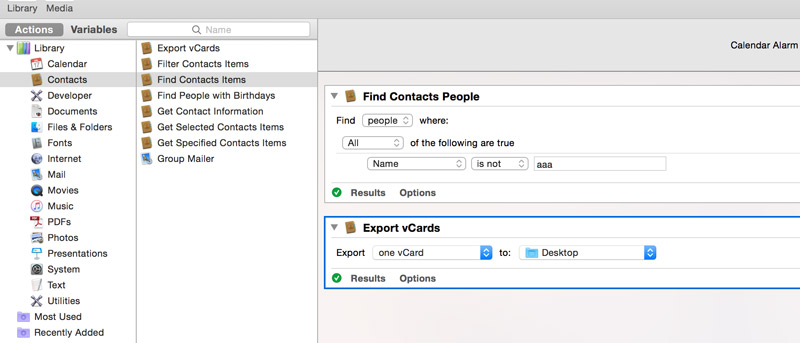
automator-iconIf you are one of the growing number of Apple users, you have likely come across a strange looking robot guy in your Applications folder. For a long time I ignored this application. It looks pretty confusing when you open it up. All that is on the screen 3 columns; one with application names, one with actions and the last is a big blank window to drag the scripts to.

This can be very intimidating if you have absolutely no idea what yo do next. Sure you can randomly drag actions into the window then hit run to see what happens. Odds are you will get an error or nothing will happen. After a few times of trying without success, most people give up and tell people on Twitter it sucks.

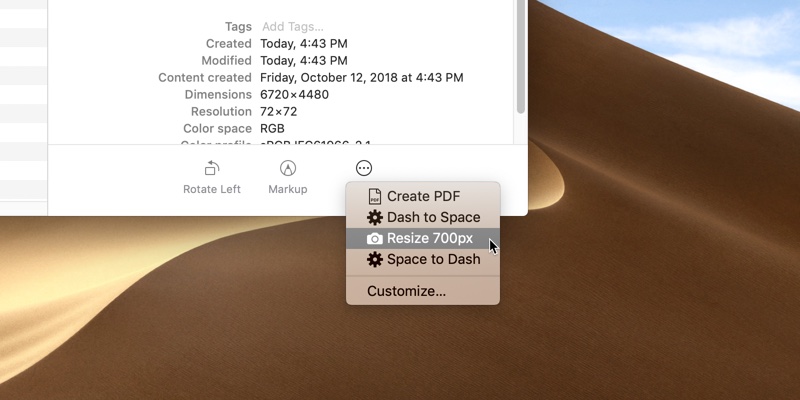
The first step in the process is to decide what you want automated. The example below is very simple. Batch Image Scale is something I use all the time. I have a couple different image scale scripts for different sizes. Setting multiple versions up may take you a few extra minutes initially, but it saves a lot of time in the future.

2 Ways to Batch Rename Files in OS X

automator-iconWhether it’s changing file names of pictures from “IMG_XXXX.jpg” to organizing your MP3s, batch file renaming can both save you time and reduce frustration.  Here are two free and easy ways to rename large groups of files in OS X.

Automator

Batch renaming in Automator is quite simple, even if you’ve never used it before.

1. Open Automator, choose “Custom” when the screen prompts you to select a starting point.
2. Drag the Automator action “Get Specified Finder Items” to the right-hand window pane.
3. Drag the Automator action “Rename Finder Items” to the right-hand window pane.

20+ Useful Automator Scripts for Mac OS X

automatorThe Automator in Mac OSX is a great tool for you that allows you to automate your daily mundane task with little effort. You don’t need to have any programming background or expertise to create your own automation workflow/application. All you need to do is simply drag and drop the necessary actions and export the results as a workflow, application or as an item in the contextual menu. Well, in case you are lazy to learn or just wanted to look for some ready-made stuff to get things going, here are 24 useful automator scripts that you can used instantly. Some of them are actions script that you can import into your automator while others are workflow or application that you can use immediately.

1